AI Playbook · Layout prompt kit
Same content. Better hierarchy.
AI sites tend to start with the same three layouts. Here are four better ones, with the prompts to build them.
Start here
Three defaults, four fixes
None of these defaults are wrong. They just give every element the same weight, so nobody knows where to look. Each fix keeps the content and changes the order the eye reads it.
| AI default | Why it feels flat | Try instead |
|---|---|---|
| Centered hero | Headline, text, button and image stack in one column and compete. | 01 · Product in focus |
| Split hero | A stock photo or full dashboard screenshot tells what the product does. It never shows it. | 02 · Product in action |
| Card grid | Every project is the same size, so nothing leads and there is no pacing. | 03 · Editorial rhythm04 · Orbit of work |
How to use this kit
Paste the base prompt
It sets the rules that stop the slop: one focal point, no filler visuals, real content. It’s just below.
Add one layout block
Pick one layout per page. Paste its block right under the base prompt.
Fill every [bracket]
Use your real headline, price and images. Placeholder copy is how sites start to look generic.
Refine one thing at a time
Ask for one change per message. It is easier to judge and easier to undo.
The base prompt
Set the rules first
Works in any AI site builder or chat tool. Paste this, then add a layout block from the sections below.
You are a senior web designer. Build a responsive landing page in a single HTML file for [BRAND], [ONE-LINE DESCRIPTION].

Use this content exactly:
Headline: [HEADLINE]
Subhead: [SUBHEAD]
Button: [CTA LABEL]
Detail: [PRICE, STAT OR SHORT NOTE]
Images: [LIST YOUR IMAGE FILES]

Design rules:
- One focal point per screen. Before you code, decide what the eye sees first, second and third.
- No gradient blobs, glassmorphism, emoji icons or stock abstract art.
- Two typefaces max. Big size contrast between headline and body.
- Generous whitespace. Align everything to a clear grid.
- Nav: logo left, two links, one CTA. Nothing else.
- On mobile, keep the same hierarchy. Don't just center and stack.
- Motion only where it explains something. Respect prefers-reduced-motion.

Layout:
[PASTE ONE LAYOUT BLOCK HERE]
Before you paste
- Product layouts need a cut-out product shot (transparent PNG). Remove the background first.
- Portfolio layouts need 6 project images with mixed crops: some tall, some wide.
01 · Centered hero
Make the product the focal point
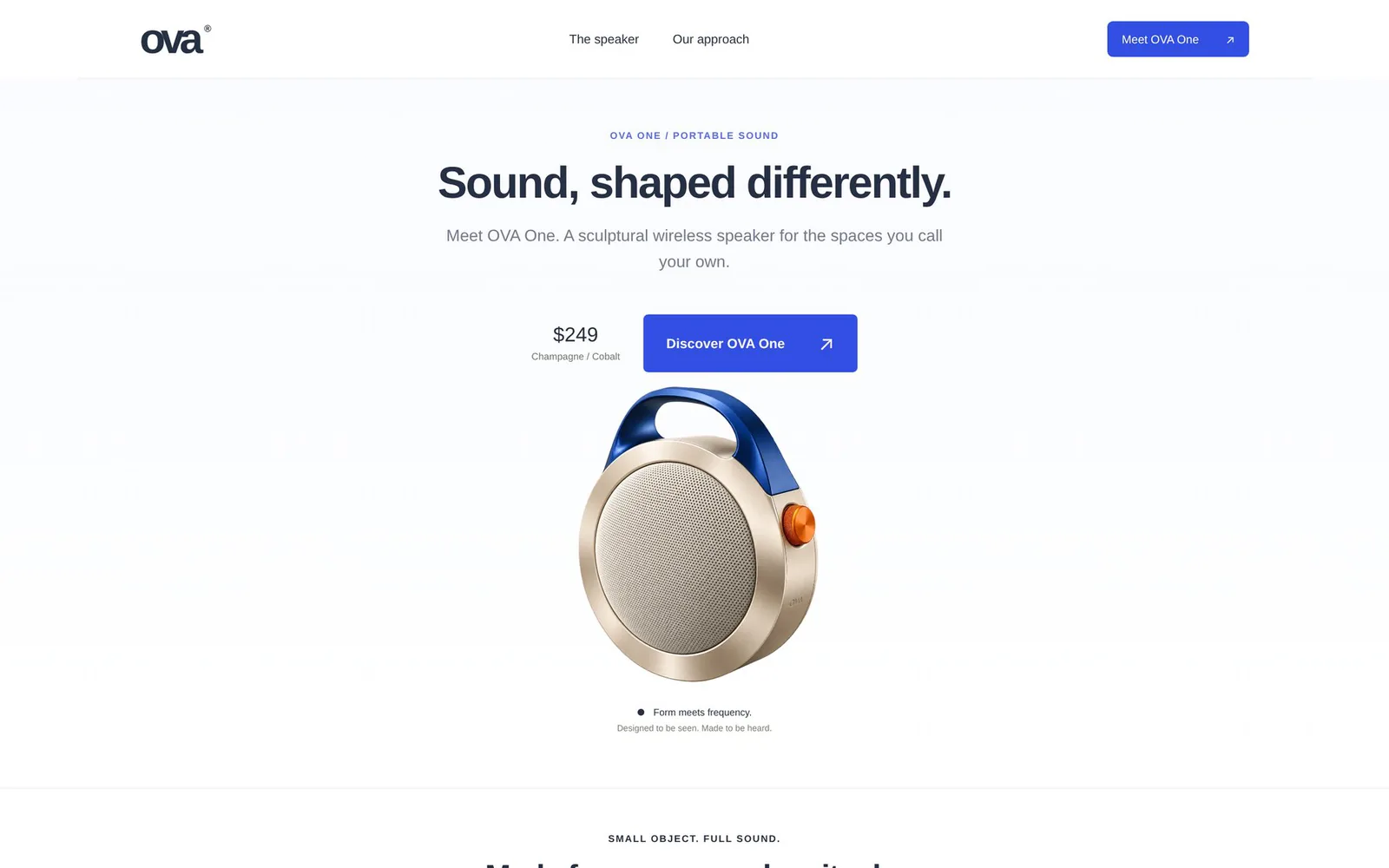
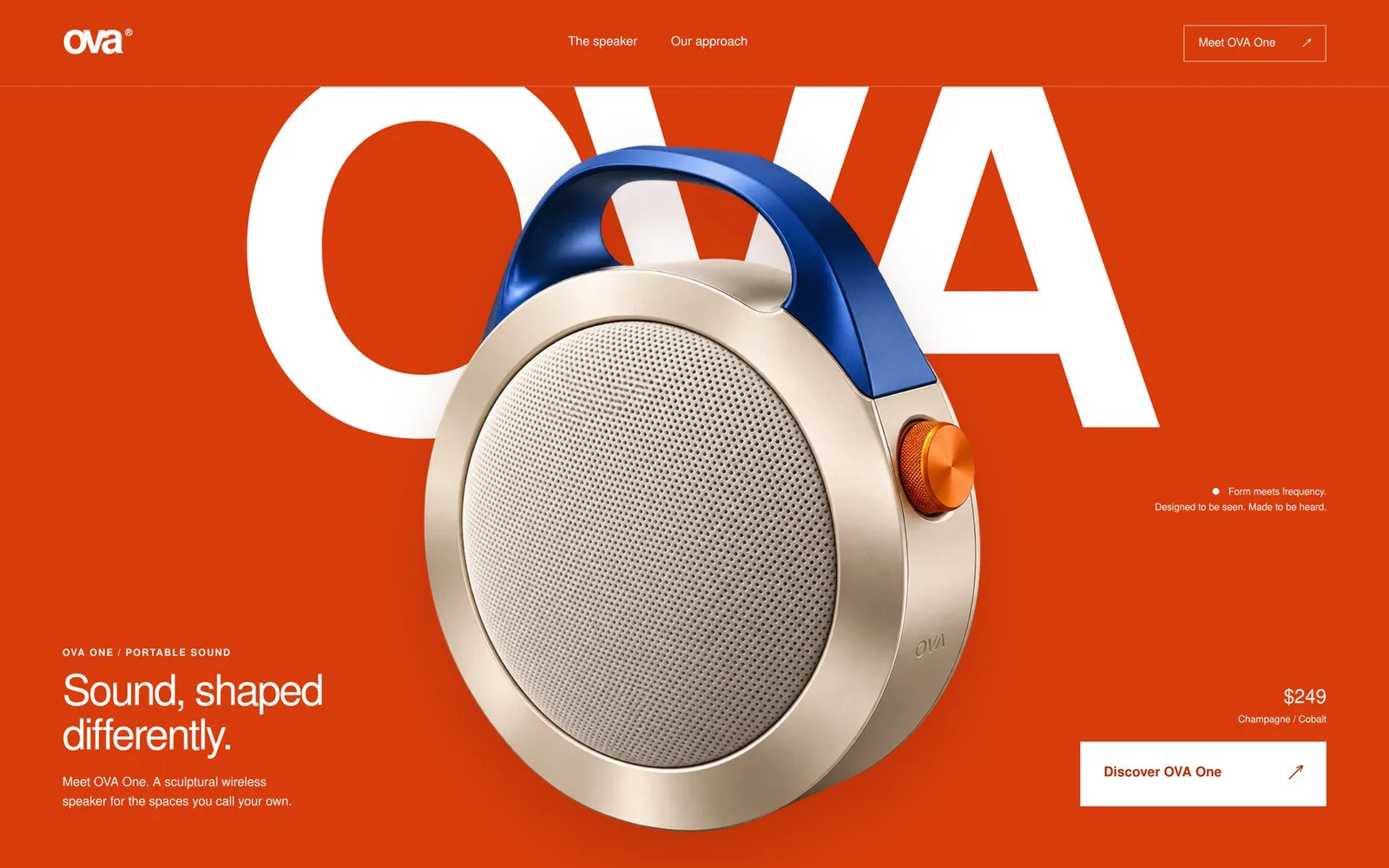
Layer the brand name behind the product. Move the copy and button to the edges around it. Now people know where to look.
What changed
- Product went from small to huge. It now fills most of the hero.
- Brand name became a giant wordmark sitting behind it.
- Copy moved bottom left. Price and button moved bottom right.
- One flat, bold color replaced the pale default.
Layout: "product in focus" hero.
- Background: one bold flat color, [#D93C0C or your brand color]. No gradient.
- Back layer: the brand name [BRAND] as a giant white wordmark, about 90% of the viewport width, near the top.
- Middle layer: the product cut-out [PRODUCT.png], large and centered, overlapping the wordmark so the letters sit behind it. About 60% of the hero height.
- Front, bottom left: eyebrow, headline, one-line subhead.
- Front, bottom right: price with a small variant note, then a white button with an arrow.
- Top right: one short tagline next to a small dot.
- Load motion: wordmark rises in, product scales from 95% to 100% and fades in, copy follows 200ms later.
- Mobile: wordmark stays behind the product. Copy and button stack below it.
Why it works
Overlap creates depth, and depth creates order. The wordmark says who it is, the product says where to look, and the edges hold the details. Every element gets one job, so nothing competes.
02 · Split hero
Show the product in action
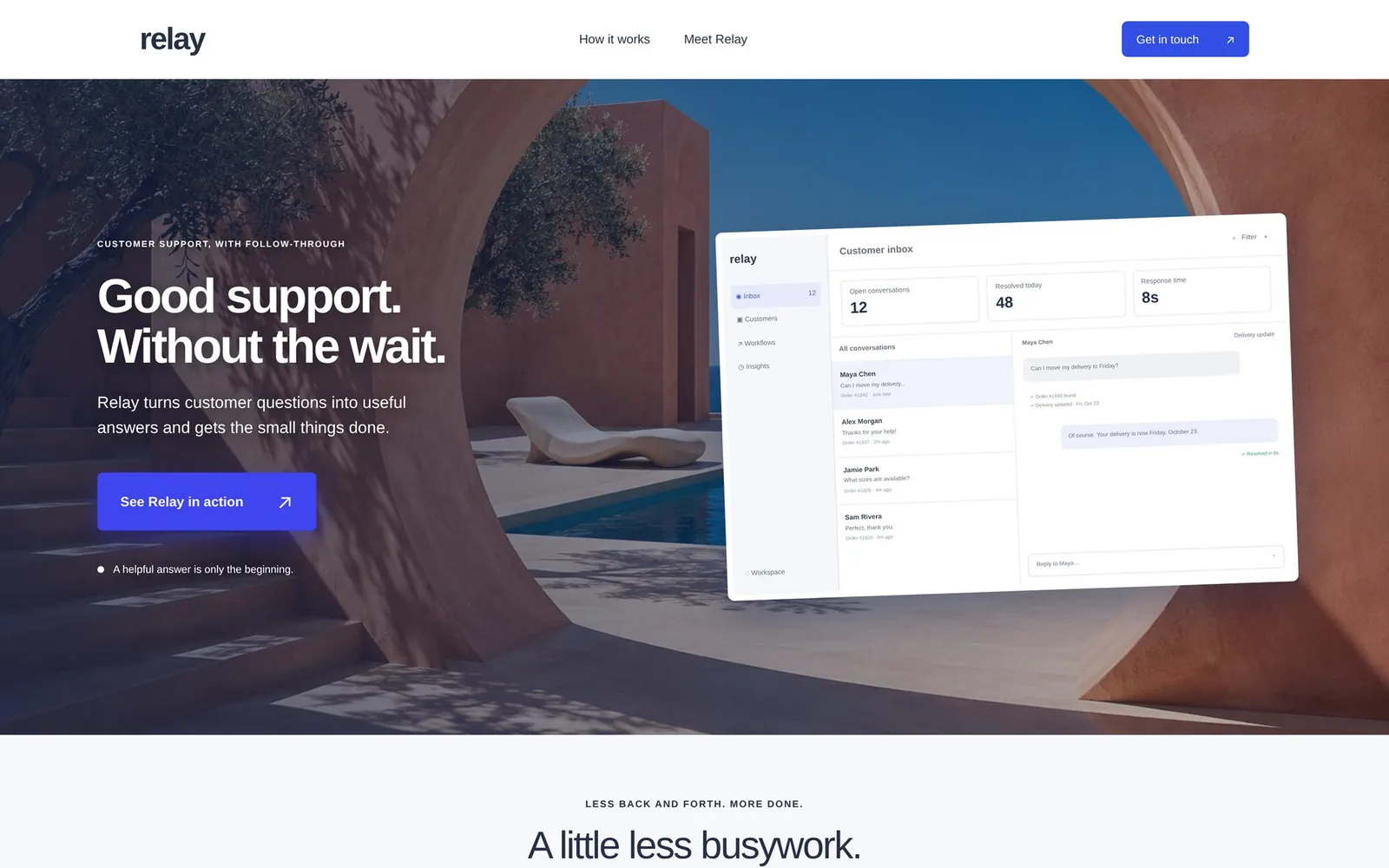
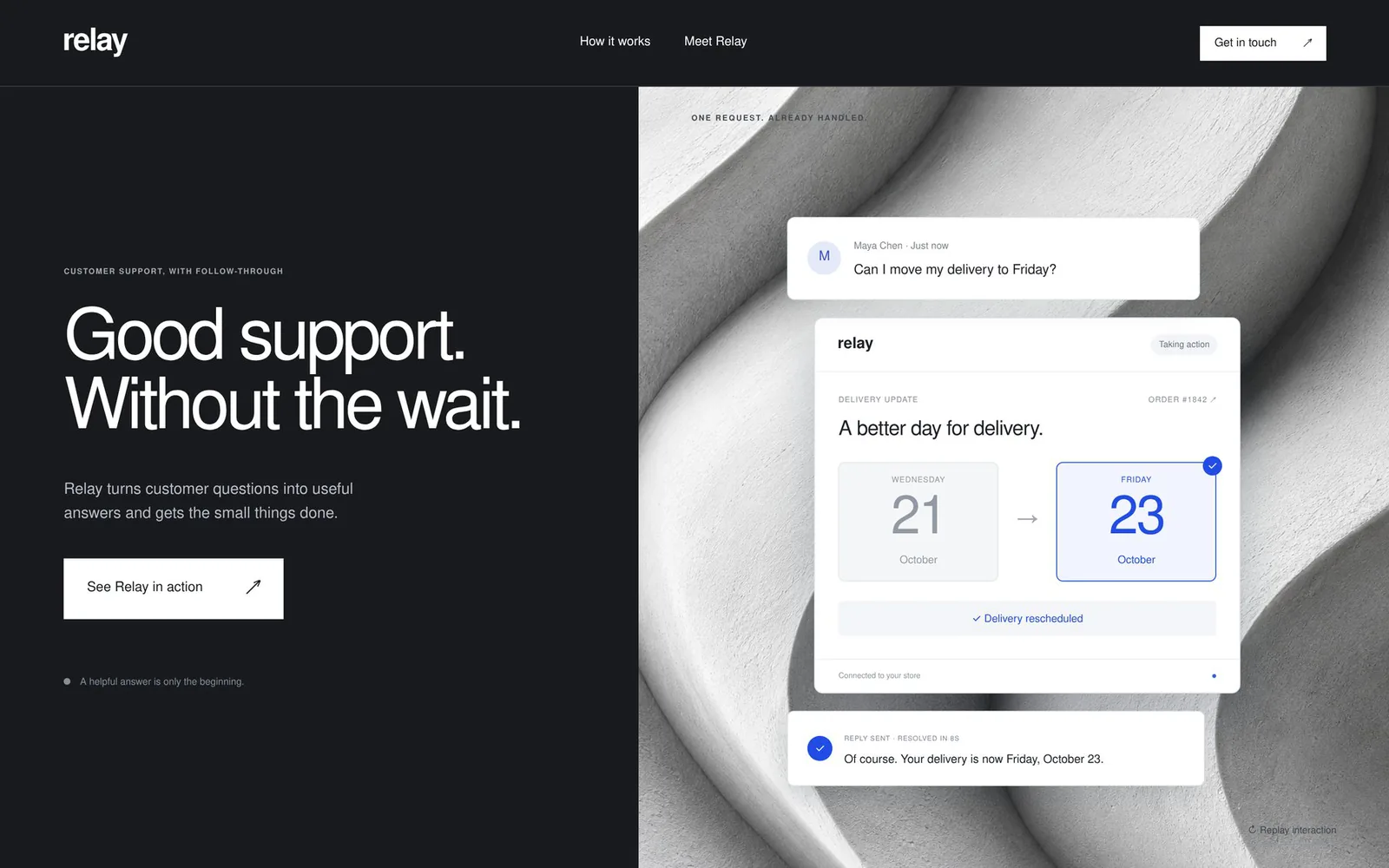
A split hero is common. Instead of a stock photo with a full dashboard on top, show one real moment of the product doing its job.
What changed
- Scenic photo is gone. A calm dark panel holds the copy.
- Full dashboard swapped for one task: a customer asks, Relay fixes it.
- The scene animates in three beats, so it reads like a demo.
- One button, in white, with square corners.
Layout: "product in action" split hero.
- Split 46 / 54. Left: solid dark panel [#181A1E] with eyebrow, a large tight headline, a short subhead, and one white square-cornered button.
- Right: a light textured panel [TEXTURE IMAGE or soft grey].
- Do not put a full dashboard or screenshot in the hero. Build one moment of the product working, in HTML and CSS.
- The scene plays in three beats, about 1.5s apart:
  1. Input card: [WHAT THE USER ASKS OR DOES]
  2. Action card: [WHAT YOUR PRODUCT DOES], with the key value changing (e.g. a date moving from 21 to 23).
  3. Result card with a check mark: [THE OUTCOME] and a small label like "Resolved in [TIME]".
- A small cursor clicks the key action. Loop every 9s and add a small "Replay" button.
- Cards: white, thin borders, one blue accent for the selected state only.
- Mobile: the scene moves below the copy and keeps all three beats.
Why it works
A screenshot asks people to work out what the product does. A three-beat scene shows the input, the action and the result in a few seconds. Showing beats telling.
03 · Grid
Give the grid an editorial look
A grid is great for showing work. Change the sizes and the spacing, and the same six projects start to read like a magazine.
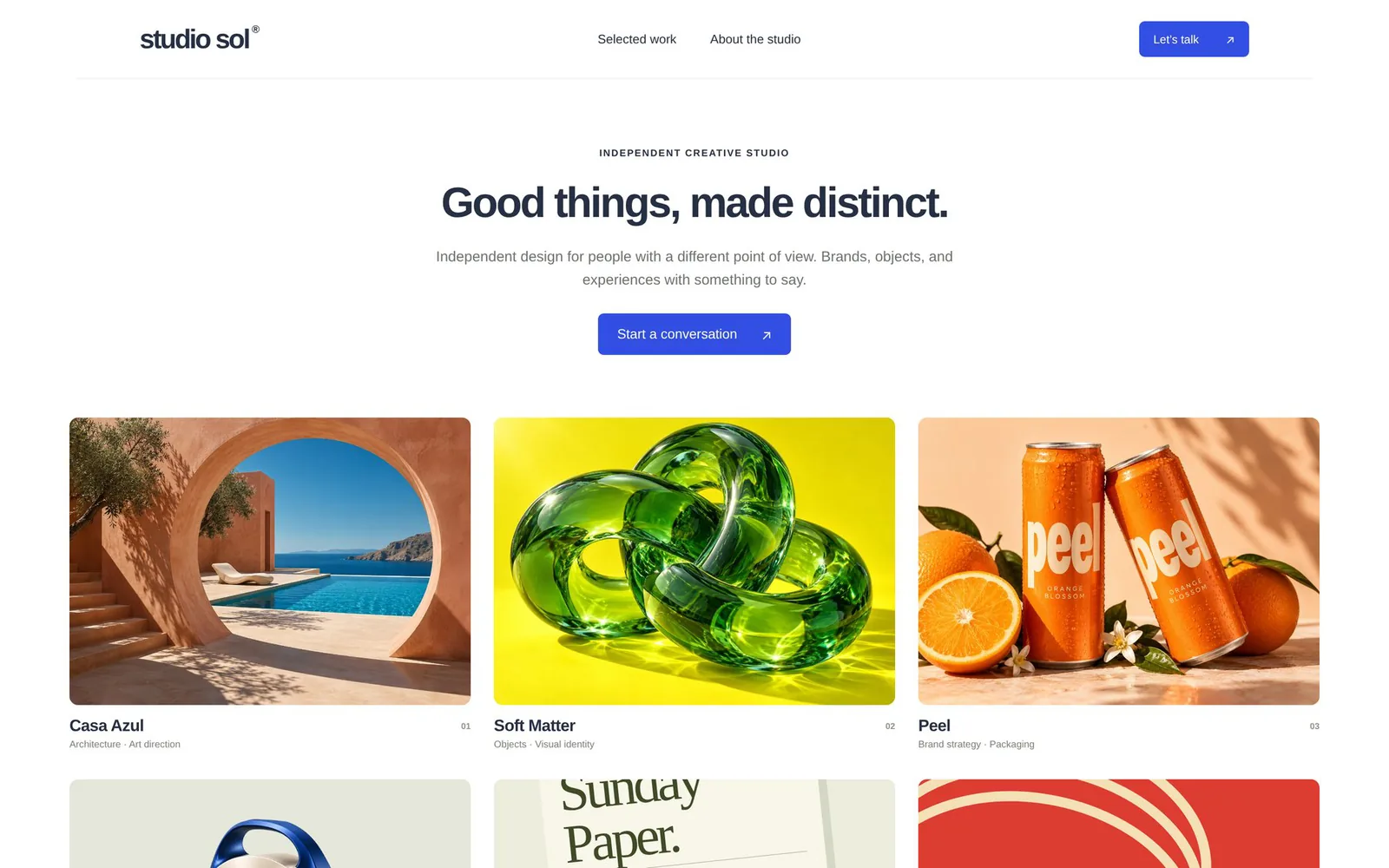
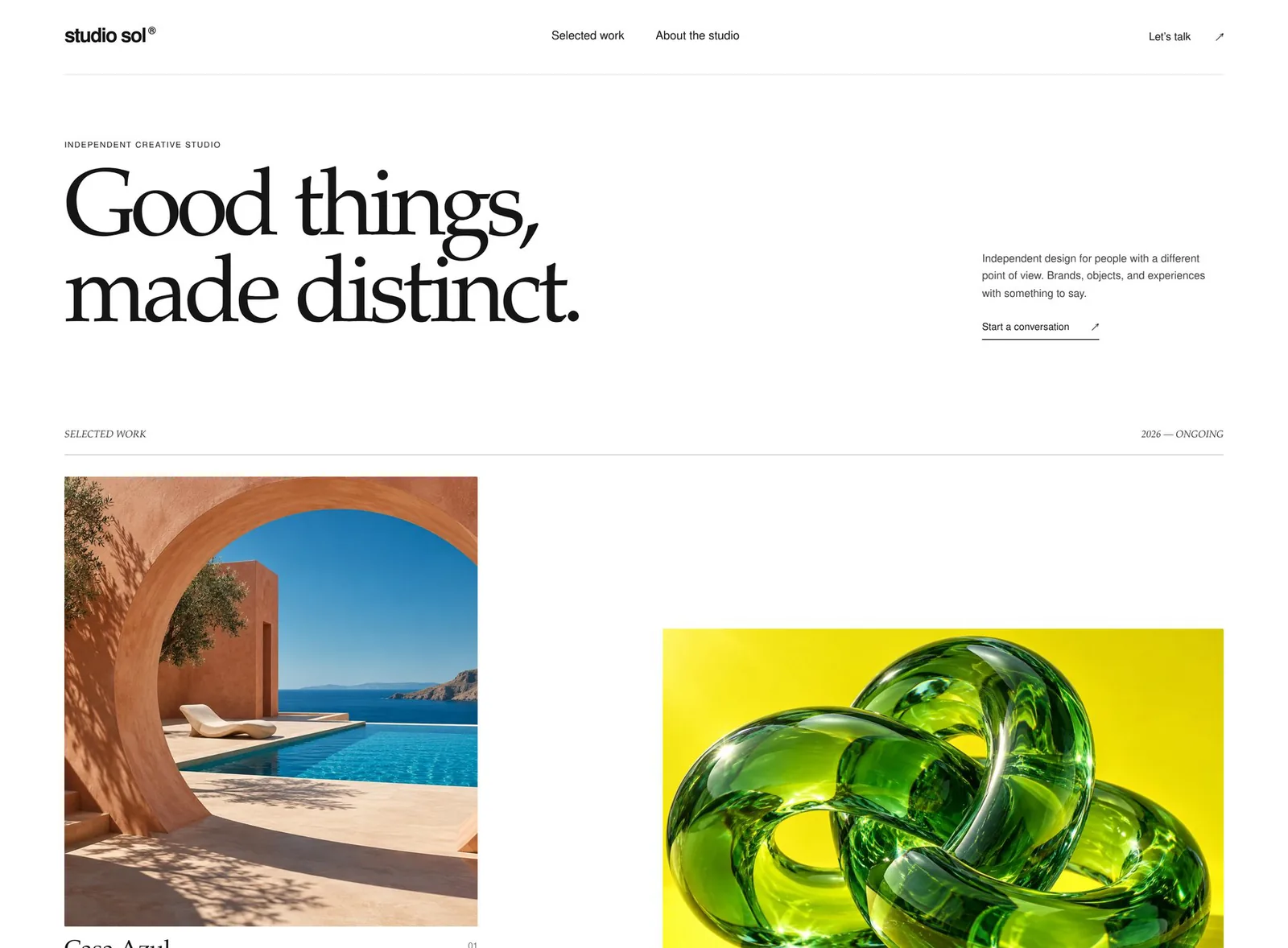
What changed
- Centered header became a huge left-aligned serif headline.
- Equal cards became a staggered two-column flow.
- Each image gets its own size and crop.
- The blue button became a quiet text link.
Layout: "editorial rhythm" project page.
- White page, black ink. A high-contrast serif for headings, a small sans for meta text.
- Hero: a huge two-line serif headline, left aligned. On the far right, a narrow column with a short intro and a text-link CTA with an arrow.
- A thin rule with "Selected work" in italics on the left and [YEAR RANGE] on the right.
- Projects in a staggered two-column flow. Alternate left and right. Vary widths (about 35% and 48%) and offset each one vertically so no two rows line up.
- Under each image: project name in serif, its number on the right, category in tiny uppercase.
- Mix crops: some portrait, some landscape.
- Images fade up as they scroll into view.
- End with a large two-line serif statement and a text-link CTA.
- Mobile: one column, but keep the size changes between images.

Projects: [6 x NAME / CATEGORY / IMAGE]
Why it works
Size and spacing set the pace. When every card is the same, the eye has nowhere to land. When sizes change, the biggest image leads and the rest follow.
04 · Grid, take two
Or try an orbit of visuals
Same six projects. They float on a slow 3D loop under a bold headline, with a plain list below so the content still reads without motion.
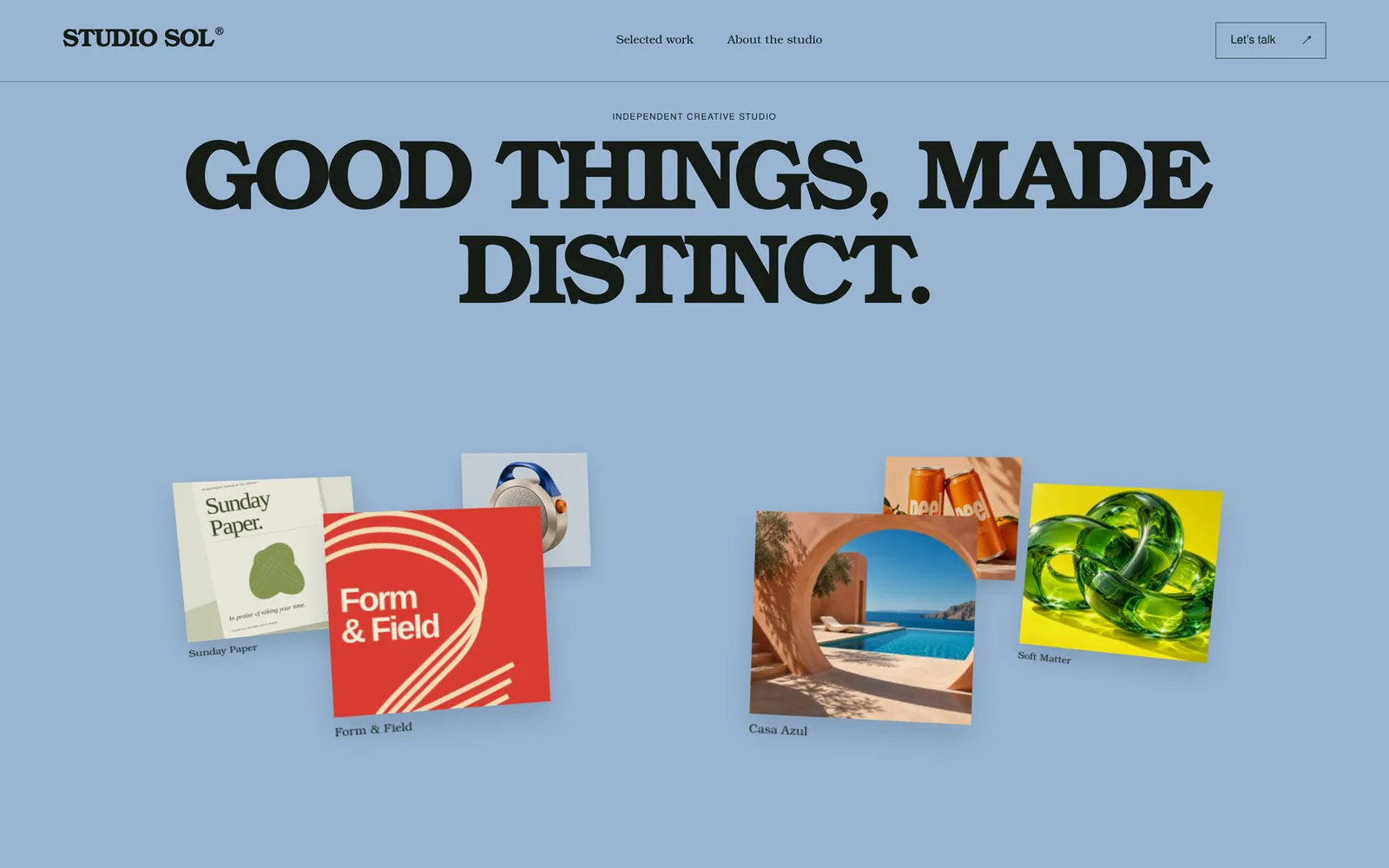
What changed
- Grid became six cards on a slow-moving ellipse.
- Cards scale down at the back and come forward at the front.
- Bold all-caps serif headline on one flat color.
- A numbered list underneath carries the content.
Layout: "orbit of work" immersive gallery.
- One muted flat background [#9DB4D3 or your color]. A heavy serif headline in all caps, centered.
- Below it, 6 project cards (image + small caption) placed on an invisible ellipse that slowly turns in 3D. Use requestAnimationFrame with sin and cos for position.
- Depth: cards at the back are smaller, softer and lower in z-index. Cards at the front are bigger, sharper and cast a soft shadow.
- Tilt each card a few degrees. Hover pauses the loop and lifts the card.
- Add a "Pause motion" text button. With prefers-reduced-motion, show the cards still, fanned out in two loose clusters.
- Below the orbit: a numbered list of all projects (number, name, category, arrow) with thin dividers.
- Mobile: smaller orbit with 4 cards. The list stays.

Projects: [6 x NAME / CATEGORY / IMAGE]